

Before You Turn On Copilot, Check Who Can See What
By David Luft | CEO, LDD Consulting | MCSE, MCT, MBA | Published November 19, 2026 | 7 min read
THE SHORT ANSWER
Microsoft 365 Copilot can only see what each employee already has permission to see. In most small businesses, that’s far more than anyone realizes. Before you turn on Copilot or any AI tool connected to your business files, clean up who can access what, starting with your most sensitive folders, so the AI doesn’t surface information that was quietly overshared years ago.
How Copilot Decides What to Show
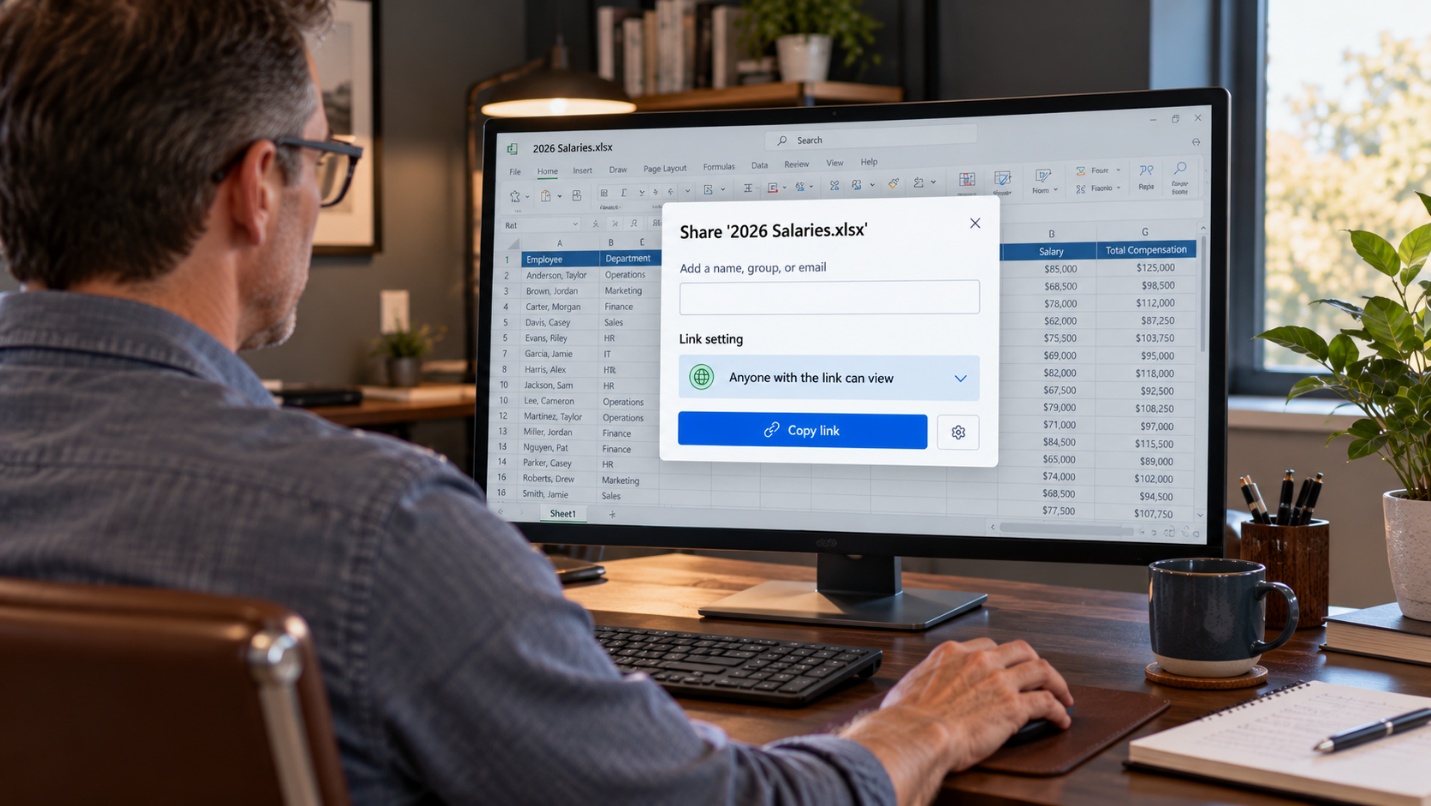
Here’s a scenario we walk clients through. An office manager asks Copilot to “summarize anything recent about raises.” Copilot returns a neat summary, including details from a salary spreadsheet the owner shared with “everyone in the organization” three years ago to get feedback on a format. Nobody remembers sharing it. Nobody broke any rules. Copilot simply found it.
That’s how Copilot is designed. According to Microsoft’s Copilot privacy documentation, it “only surfaces organizational data to which individual users have at least view permissions.” It searches across email, Teams chats, OneDrive, and SharePoint, using each person’s existing access.
In other words, Copilot doesn’t create new security holes. It makes your existing ones easy to find. Before AI, an overshared file was protected by the fact that nobody knew where to look. Copilot knows exactly where to look.
Pro tip: Ask yourself one question before any AI rollout: “If every employee could instantly search everything they technically have access to, what would they find?”
The Oversharing Problem You Already Have
Every Microsoft 365 environment we review has some oversharing. It doesn’t come from carelessness. It builds up over years of people trying to get work done quickly: a link shared for a quick favor, a folder opened to everyone because adding people one by one was tedious, a site nobody cleaned up after a project ended.
| Where it hides | What we typically find | The fix |
|---|---|---|
| “Anyone with the link” shares | Files shared once for a quick favor that are still open years later | Expire or remove old links; change the default link type |
| “Everyone” groups | Folders shared with “Everyone except external users” to save time | Replace with the specific team or group that needs access |
| General team sites | An HR or finance folder tucked inside the all-staff site | Move it to its own site with its own members |
| Former employees’ OneDrive | Files a departed manager shared widely and nobody reviewed | Review and reassign during offboarding |
| Guest accounts | Vendors and contractors who still have access after the project ended | Review guests quarterly and remove stale ones |
None of this is unusual, and most of it has been harmless because nobody stumbled onto it. AI changes that.
Pro tip: Copilot is the most visible example, but any AI tool connected to your cloud files works the same way. The cleanup applies no matter which one you choose.
What’s Most Likely to Surface
Some information is more damaging than the rest when it ends up in front of the wrong person. These are the folders we check first:
- Payroll and compensation: salary spreadsheets, bonus plans, and raise discussions.
- HR files: performance reviews, disciplinary notes, and medical leave paperwork.
- Owner and finance files: bank statements, loan documents, tax returns, and buy-sell agreements.
- Client records: contracts, pricing, and anything covered by confidentiality agreements.
- Regulated data: patient information, financial records, and anything else with compliance obligations attached.
For healthcare and other regulated businesses, this isn’t just an awkward conversation. An employee seeing patient information they don’t need for their job can be a reportable privacy issue, whether a person or an AI tool put it in front of them.
Pro tip: You don’t have to clean up everything before starting. Find your five most sensitive folders and lock those down first.
A Pre-Copilot Readiness Checklist
Getting ready for Copilot is mostly ordinary housekeeping that should have happened anyway. Microsoft’s own guidance on preparing SharePoint and OneDrive for Copilot follows the same pattern: find the oversharing, contain it, fix it, and keep it from coming back.
Step 1 — Find What’s Overshared
Run a sharing and permissions review across SharePoint and OneDrive. Microsoft includes reporting tools for this, and some of them come with Copilot licenses. The goal is a list of sites and files shared with everyone, shared by link, or shared with people who have left.
Step 2 — Contain the Sensitive Areas
For sites that need more time to fix, Microsoft offers a setting called Restricted Content Discovery. It hides a site from Copilot’s broad searches without changing who can open it. It’s a stopgap, not a fix, but it buys time.
Step 3 — Fix the Permissions
Remove old sharing links, replace “everyone” access with the right groups, move sensitive folders into their own sites, and remove guests who no longer need access.
Step 4 — Label What Matters
Sensitivity labels mark files as confidential and can encrypt them. Copilot respects the access rules those labels set, so a labeled payroll file stays limited to the people it’s meant for.
Step 5 — Change the Defaults
Set new sharing links to “specific people” instead of “anyone” or “everyone in the organization.” This one setting prevents most future oversharing.
Pro tip: The default link setting matters more than any one-time cleanup. Fix the cleanup without fixing the default and you’ll be back where you started in a year.
Roll Out to a Small Group First
Don’t buy Copilot for everyone on day one. Start with three to five people from different roles, ideally including someone outside management. Ask them to use it normally for a few weeks and report anything that surprised them.
What surprises them is your to-do list. Fix it, then expand to the next group. A phased rollout also tells you whether Copilot is worth the license cost for each role before you commit across the board.
With managed IT services, the permissions review, pilot, and ongoing monitoring are handled for you, so the rollout doesn’t depend on someone finding spare time.
Pro tip: Ask pilot users to try a few uncomfortable searches on purpose, like “salary,” “termination,” or “bank account.” It’s better they find the problems than someone else does.
Set Rules for the AI Tools Your Team Already Uses
Even if you never buy Copilot, your employees are almost certainly using AI already. In a July 2026 survey of 500 U.S. workers, 38% said they had entered work information into a personal AI account their employer doesn’t control, and 23% had pasted in internal emails, memos, or documents.
That’s the AI version of the problem we covered in Shadow IT: The Apps Your Employees Are Using Without Telling You. Information pasted into a personal AI account leaves your control entirely.
A short AI use policy fixes most of this. It should name which AI tools are approved for work, list what can never be pasted into an unapproved tool (client data, financials, passwords, health information), and say who to ask when someone isn’t sure.
Business versions of these tools matter too. Microsoft says that prompts, responses, and data accessed through Microsoft 365 aren’t used to train its AI models. Personal and free consumer accounts don’t always offer the same commitment.
Pro tip: Give your team an approved option. Banning AI outright mostly pushes people to use it where you can’t see it.
Common Mistakes Businesses Make
Mistake 1 — Buying Licenses for Everyone on Day One
A company-wide rollout means company-wide discovery of every permissions problem, all at once and in front of everyone. A small pilot finds the same problems quietly.
Mistake 2 — Assuming “Nobody Would Look There”
Obscurity used to be a real, if accidental, form of protection. AI search removes it. We see this all the time: a folder nobody has opened in years turns up in a Copilot answer within the first week.
Mistake 3 — Ignoring the AI Tools Already in Use
Focusing only on Copilot while employees paste client data into personal chatbot accounts protects one door and leaves another wide open.
Mistake 4 — Leaving Sensitive Files Unlabeled
Without sensitivity labels, the only thing protecting a payroll spreadsheet is its folder permissions, and those drift. Labels travel with the file.
Mistake 5 — Treating It as a One-Time Project
Permissions drift every time someone shares a file, joins a project, or leaves the company. Offboarding is a big one, as we covered in Stop Data Leaks When Staff Leave. Without regular reviews, today’s cleanup becomes next year’s problem.
Frequently Asked Questions
Not for business accounts. Microsoft states that prompts, responses, and data accessed through Microsoft 365 aren’t used to train its foundation models. Free consumer AI tools may have different terms, which is why an AI use policy matters.
No. Copilot works within each user’s existing permissions. The risk isn’t that it bypasses security. It’s that people can open far more than anyone intended.
Not quite. According to Microsoft, Copilot Chat without a Copilot license works mainly with the web and files you upload. The full Microsoft 365 Copilot license adds access to your email, chats, meetings, and files, which is where permissions become critical.
It depends on the role. People who spend their day in email, documents, and meetings tend to get the most value. A pilot is the best way to find out before you pay for everyone.
For most small businesses, the first pass takes a few days to a few weeks, depending on how much has built up. Locking down the most sensitive areas can happen much faster.
List your five most sensitive folders and check who can open them. If the answer surprises you, or you’d like help preparing for an AI rollout, contact us and our IT support team will walk through it with you.
Related Articles & Next Steps
→ Shadow IT: The Apps Your Employees Are Using Without Telling You
→ AI Tools for Small Businesses in Albuquerque
→ Is Your Business Actually Compliant
Sources
- Microsoft Learn — Data, Privacy, and Security for Microsoft 365 Copilot
- Microsoft Learn — Govern SharePoint and OneDrive for Microsoft 365 Copilot
- Microsoft Support — How Copilot Chat works with and without a Microsoft 365 Copilot license
- Stacker — Nearly 2 in 5 US workers have put company information into personal AI accounts

David Luft
CEO, LDD Consulting
David founded LDD Consulting in 2003 with a straightforward mission: help small and mid-sized businesses in Albuquerque and across New Mexico get reliable, enterprise-quality IT support without the enterprise price tag. He holds an MBA with a concentration in Information Systems from the University of New Mexico, along with Microsoft Certified Systems Engineer (MCSE) and Microsoft Certified Trainer (MCT) credentials. He’s been solving business technology problems for more than 25 years.